

Know what was paid and who paid it, on the same screen as your leads and ad spend.
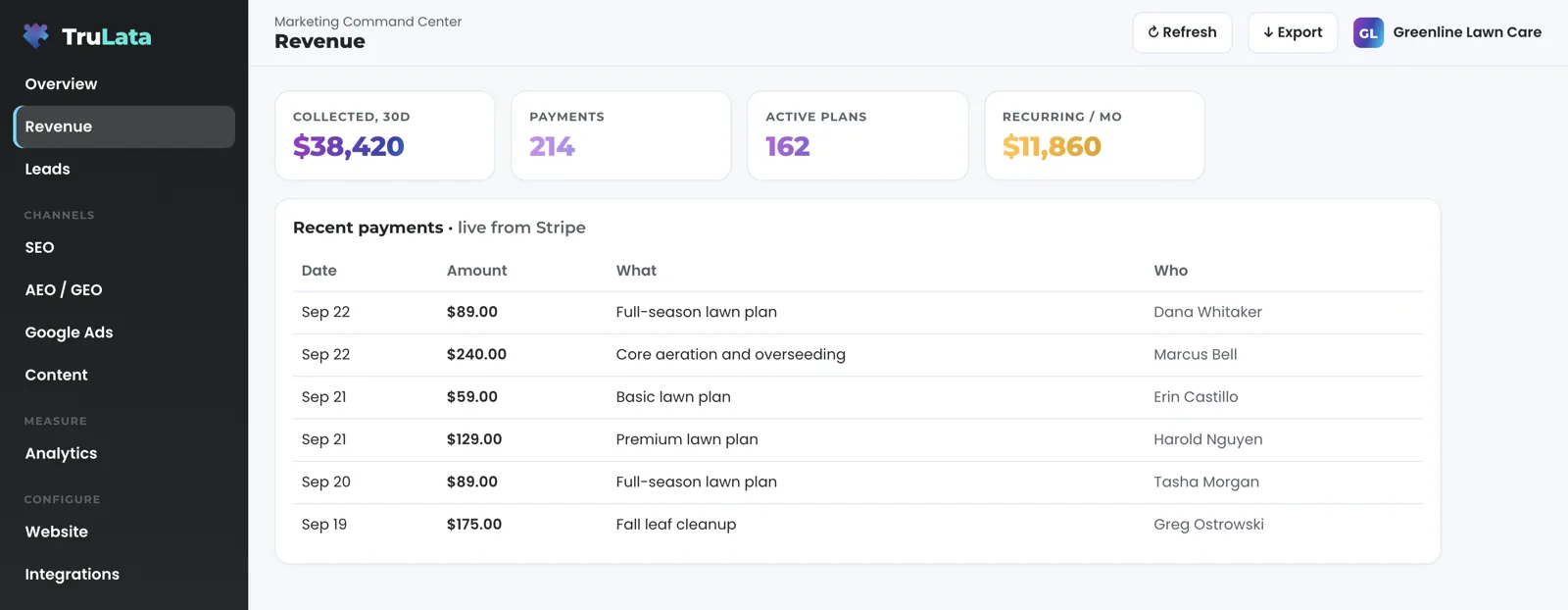
Open the Revenue view and read your Stripe account as it stands: what was collected in the window, what recurs each month, and the latest payments with the date, the amount, what it was for and who paid. It sits one click from your leads and your ad spend, so you read money against marketing under one login.

What do I see the moment I open the Revenue view?
Your Stripe account, read through Stripe's own API for the window the page names. The stat row at the top carries the totals: revenue collected, the number of payments, active subscriptions and the recurring figure per month. Click any stat and a panel opens with the current value and the window it covers.
Two tables sit under the stats. The first lists each subscription tier you sell, its price and how many are active now, under a Live badge, with a How this runs line beneath it that says in plain words where the figures come from. Recent payments follows, newest first: the date, the amount, what it was for and who paid. Click a row and the panel shows the amount, the date and the customer.
What Stripe recorded is what the view shows, and a refresh moves it. Press Export and the tables download as trulata-revenue.csv, read from the screen itself, so the file carries the live numbers you were looking at and not last night's copy.
Read it before the Monday meeting. Last week's payments, the names on them and what recurs each month take one open of one page, in the same minute you read your leads.
Will it tell me which channel the money came from?
The Revenue view shows the money as Stripe recorded it, and the channel is read where it was captured. A payment in Stripe carries what Stripe recorded, so the view shows that record as it stands, and every figure on the screen can be checked against its source.
Read the channel where it was captured. The Leads view carries the page each form was submitted from and the outcome your team sets. The Google Ads view carries spend, conversions and cost per conversion for each campaign. Revenue, leads and spend are three views in one menu, one click apart, not three logins.
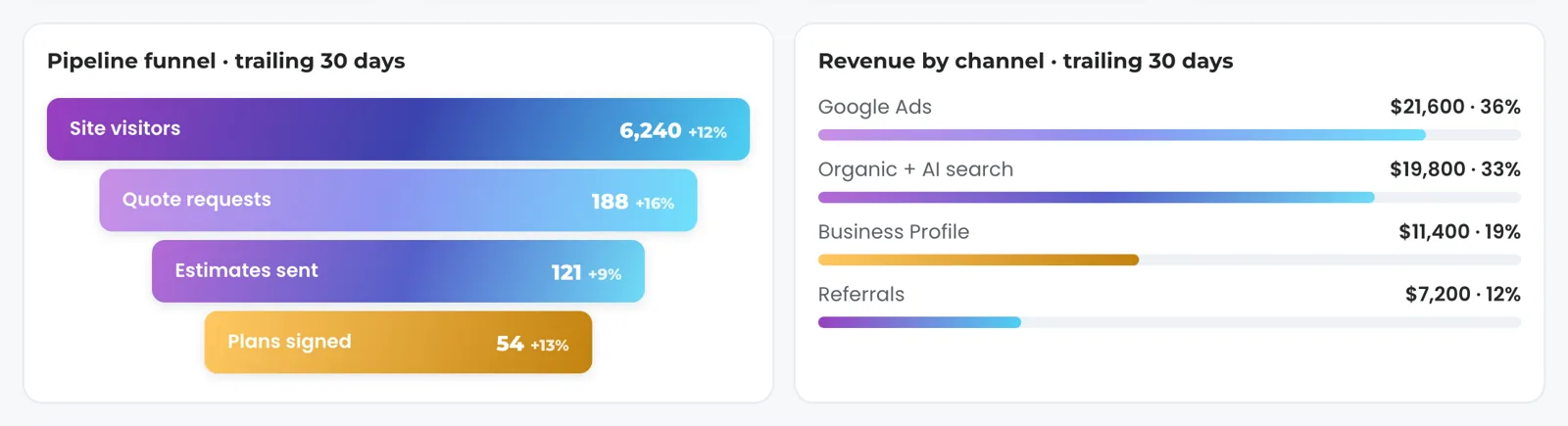
Where our team configures a revenue split for your instance from what your payment records carry, the Overview shows a revenue-by-channel card beside the funnel: one bar per line with its amount and its share, and a click opens both in a panel. The card appears once that split is configured during setup, and every bar on it traces to your own records.
Read the channel where it was captured
Leads view
- The page each form came from
- The outcome your team sets
Google Ads view
- Spend, conversions and cost per conversion
- One row per campaign
Revenue view
- What was paid, and who paid it
- Read from Stripe
Revenue, leads and spend are three views in one menu, one click apart, not three logins.
What if my business runs on a CRM or booking platform, not Stripe?
Then the Jobs view carries your job pipeline, read live from your CRM or booking platform, and the Revenue view reads whatever you take payment through. A business that runs both sees both. The point is one screen, not one vendor: revenue is read from where it lands.
Each view appears as its source is connected. The Revenue view enters your menu once Stripe is reading, with your own figures on it from the first open. Jobs appears where your CRM or booking platform is connected, and it shows a coming-soon card until the data behind it is trustworthy.
Stripe is the payment platform the Revenue view reads today, and a payment platform other than Stripe is connected during setup, like any other source with an API. The view reads your own account, with access you grant during setup, and we hold no password for it. The reading is one way in both places: the view reads your CRM and your Stripe account, and a job or a charge is changed in the system that holds it.

How do I get to a cost per won job?
Divide spend by jobs won, with every part of the division on the screen. The Google Ads view records spend, conversions and cost per conversion for each campaign. The Leads view records every form submission your site received and, with outcomes switched on for your instance, your team marks each one New, Contacted, Quoted, Won or Lost from a dropdown on the row. The Revenue view records what was paid.
Take a month with round numbers. The Google Ads view shows $2,400 spent in the window. Forty submissions landed on the Leads view. Your office marked four of them Not a lead, each with its reason on the same row: an existing customer, a sales pitch, a wrong number, a caller out of area. Twelve were marked Won. Cost per won job is $200. The Revenue view shows what those customers paid, payment by payment with the name on each, so you read spend against cash on one screen. One login and one screen got you there.
The number is only as good as the outcomes your team sets. A lead nobody has marked stays a lead and stays New, exactly as it landed. After two days without a status it wears a badge, no contact marked yet, with its age in days, computed from your own record. The gap shows the week it opens, not at the end of the quarter.
- $2,400 spentThe Google Ads view, in the window
- 40 submissionsThe Leads view
- 4 marked Not a leadEach with its reason on the row
- 12 marked WonSet by your office
- $200 per won jobEvery part of the division on the screen

One login and one screen got you there.
What runs on its own, and what stays with a person?
The reading runs on a schedule whether anyone is at a desk. Open the page and it loads last night's snapshot first, fetches the live payload from a cache at once, and starts a pull in the background if that snapshot is older than five minutes. Press Refresh and a full pull starts, 2 seconds to a little over 3 minutes depending on how many sources you have; the page reloads when the stamp moves, and every path through Refresh ends in a reloaded page whose stamp says how old the data is. At 12:01am Central one job rebakes the fallback snapshot for every client, and a failed pull leaves yesterday's page up, so there is always a page to read.
Money moves inside limits you set. The view reads Stripe, and a charge, a refund or a subscription is changed in Stripe itself. Budget and bid changes stay within the limits set for your engagement, and each one lands in your account's own change history. Your staff set the outcome on a lead, and it stays on the record as they set it. What a person writes from the screen is short: a lead outcome, to the lead record; a website change request, or a content, keyword, category or targeting request, to our team as a logged ticket. The engine's writes to your ads account and your site go through their APIs and land in each account's own change history.
Two watches run each morning on the marketing that feeds this screen. At 7:05am Eastern the ads change watch reads your ad account's change history and its user list, because a change to who has access is not logged as a change event. At 7:20am Eastern, on an instance whose forms feed the lead sheet, the lead watch runs five checks against what Google Ads and GA4 counted. The watches read; a person makes any change that follows.
The lead watch checks the leads that landed against the conversions Google counted. Where your forms feed the lead sheet, that comparison runs every morning, so a dead tag, a blind ad account or a stalled form is flagged the next day. With leads, spend and payments on one screen, a gap between them is readable the week it opens.
The reads, on a schedule
- Snapshot, then liveA pull behind the page past five minutes
- A full pull2 seconds to a little over 3 minutes
- Fallback rebakeA failed pull leaves yesterday's page up
- Ads change watchChange history and user list
- Lead watchFive checks against Ads and GA4
How does Stripe get connected, and where is the ceiling?
Our team connects Stripe from the inside during setup, with access you grant. Your part ends with the grant, our team does the connecting, and we never ask for a client's account password. The Revenue view is part of TruLata, which is on all tiers, and it appears in your menu once the connection is reading.
Your seat list decides who sees the money. Your dashboard is a private site at your own trulata.com address behind our sign-in gate. Invite a seat from the Team view by email, as Member or Admin; that person signs in with a single-use magic link from login.trulata.com, and a seat you remove stops working within 30 seconds.
Read the ceiling before you buy, because the sources set it. Stripe is live: it records a payment when it succeeds, and a refresh moves it. Your CRM, your booking platform, website leads and email statistics are live too. Google Ads and GA4 intraday figures on the same dashboard lag by hours, and Search Console runs two to three days behind. The stamp in the header says when the data was pulled; hover it and it says either that the numbers were pulled live when you opened the page or that the live refresh was unreachable and you are reading the last saved snapshot.
Every number on this screen already happened: payments collected, subscriptions active now and what you charge, read from your own Stripe account. Card numbers stay with Stripe, never read on any instance. What Stripe recorded is what the screen shows, beside the leads and the spend that produced it.
Run three checks in the demo. The demo runs the same engine code every client instance runs, on a fictional company with illustrative numbers, and it opens with your name and email. It shows the Overview's revenue-by-channel card, and the full Revenue view sits in your instance's menu once Stripe is reading. Open the Overview, click a revenue-by-channel bar and read the panel: revenue and share. Click a headline card and confirm the window it covers. Then press Export and open the file, because that same button on your Revenue view is how the tables leave the screen.
What the Revenue view reads.
| What | Where it comes from | How fresh |
|---|---|---|
| Payments | Stripe API | Live |
| Subscriptions and tiers | Stripe API | Live |
| Recent charges | Stripe API, newest first: date, amount, what, who | Live |
| Revenue by channel | A split our team configures for your instance from your payment records, on the Overview | Shown only where configured |
| Jobs | Your CRM or booking platform, where used | Live |
| Card data | With Stripe, which holds the cards | Never read |
Every figure on the Revenue view is read from your own Stripe account. The connection is read only, so a charge, a refund or a subscription change is made in Stripe itself, and card data stays there.
Questions, answered.
Is the revenue number live?
Yes. Stripe records a payment when it succeeds, the pull reads your account through Stripe's API, and a refresh moves it. The stamp in the header says when the data was pulled.
Can it charge or refund anyone?
The connection is read only. The view reads payments and subscriptions from Stripe; a charge, a refund or a subscription change is made in Stripe itself, and card data stays with Stripe, never read by us.
Do I need Stripe?
Stripe is the payment platform the Revenue view reads today, and the view appears once it is connected. A payment platform other than Stripe is connected during setup, like any other source with an API, and a business whose jobs live in a CRM or booking platform gets a Jobs view, read live.
How is revenue tied to a marketing channel?
Where it was captured. The Revenue view shows what Stripe recorded; the Leads view carries the page each form came from and the outcome your team set, and the Google Ads view carries the spend. Where our team configures a revenue split for your instance from your payment records, the Overview shows revenue by channel beside the funnel.
Who on my team can see it?
Anyone on your seat list. Invite a seat by email from the Team view, as Member or Admin; sign-in is a single-use magic link from login.trulata.com, and a seat you remove stops working within 30 seconds.
Does it forecast?
Every number on the screen is read from payments that already happened and subscriptions active now in your own Stripe account, so what you read is what was collected, beside the leads and the ad spend on the same screen.
Which tier includes it?
Once Stripe is connected on your account, it is there. A view appears when its source is connected, and the pricing page lists what each tier includes.
See it running
before you decide.
The demo is the real product on a fictional company, with your name and email in front of it. Pricing is three published tiers.
Open the live demo See pricing
New here? See what TruLata is. Prefer to write? Send us the one thing you want to know.
Start here: AI marketing platform · AI marketing software · all-in-one marketing platform · marketing automation software · marketing software for small business.
- Refreshed when you open itLive data on page load, never a monthly PDF
- Counted from your own formsLeads recorded server-side, compared daily with Ads and GA4
- Seen in AI answersHow often ChatGPT, Gemini, Claude and Grok name you, measured
- Every send loggedProspect emails leave from a review-first queue, and every send is logged.