

Give your team your numbers. Take them back in 30 seconds.
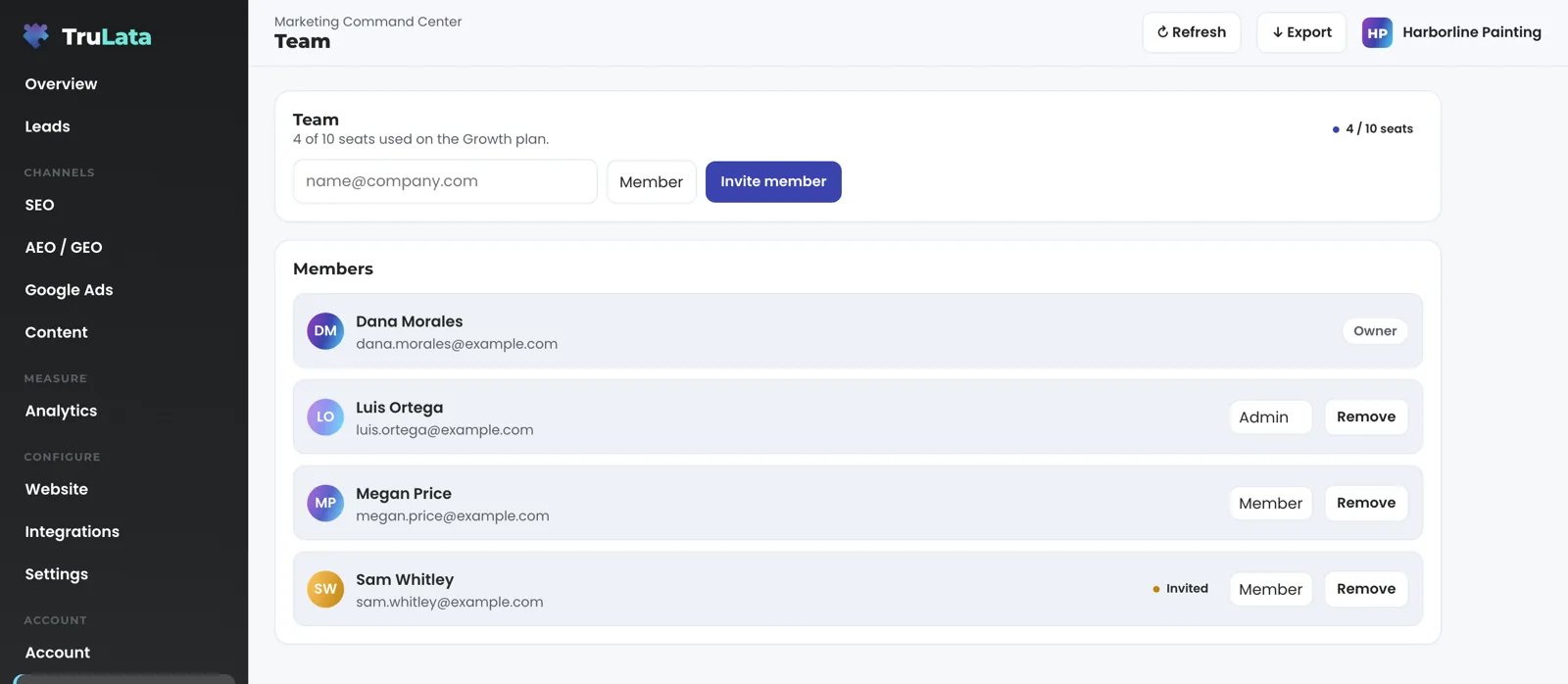
The Team view is one list of every seat on your dashboard, with a role beside each name and the seats you have left. Add someone with their email. Remove them, and their access ends within 30 seconds.

How many people can I give a seat?
As many as your plan carries: three on Starter, three on Launch, ten on Growth and unlimited on Command. The top of the Team view reads seats used of seats on your plan, and a badge beside it repeats the count. Fill the plan and the badge changes colour, a line appears that says Seat limit reached and points you to Billing, and the next press of Invite member is refused with the message seat limit reached. Every refusal is stated on the screen.
Only a held seat counts. A row marked Active or Invited spends a seat. A removed row frees its seat for the next person the moment you remove someone.
The count comes from your plan record, not from a number typed into your page. The Team view, the Billing view, the sign-in page and the seat check at the door all read the same record, so they agree on one number.
Every seat on your plan is yours. A TruLata address opens your dashboard as the operator, outside your plan's count. Try to give one of us a seat and the view tells you we hold none.
If our seat service is slow to answer for a moment, the view keeps the last list it had, so you always see your real team.
How do I add someone?
Type their email, pick Member or Admin, press Invite member. The row appears in the Members list marked Invited, the count moves, and a notice confirms the seat was added for that address. The seat is recorded against your plan with four things on it: the address, the role, who invited them and when.
The seat admits them from that moment. The door reads the seat list, and an invited seat passes the same as an active one, so they are admitted from the moment the row appears. The same press also adds their address to the access gate on your dashboard's hostname. If that gate update fails, the seat is still recorded and the failure is logged with its reason; until the gate is updated the row shows Invited and the sign-in wall may still refuse that address.
A full plan refuses the record instead of stretching the count. The refusal says seat limit reached.
The new person signs in with a link, not a password. They open login.trulata.com and enter their address. A plain-text email from TruLata arrives with the subject line Your TruLata sign-in link, names their dashboard and carries one link. The link works once and expires in 15 minutes. Hold a seat on more than one account and the email says how many; the link then lands on a page headed Choose a TruLata dashboard that lists each one by name.
The sign-in page answers the same way whether or not an address holds a seat: if that address has access, a sign-in link is on its way. Nobody can use it to find out who works at your company. A link that has expired, or has already been used, says so and offers a new one.
Your Owner seat is named by our team during setup, with the rest of your access. From then on the Owner, or an Admin the Owner names, adds the team.
- Type their email, pick a roleMember or Admin, then Invite member
- The row appears, marked InvitedThe seat admits them from that moment
- They sign in with a linkFrom login.trulata.com; it works once and expires in 15 minutes
- More than one account?A chooser asks which to open
What can each role do?
Member, Admin and Owner open the same views and read the same numbers. The role decides who can invite and remove.
Only an Owner or an Admin can invite or remove a teammate. A Member sees the list, no invite box, and a line that says the workspace owner or an admin can invite and remove members. An Admin can grant Member or Admin; the Owner seat is named by your TruLata team. An Owner row carries no Remove button, so an Owner seat changes only through your TruLata team. Removal is always done by another Owner or Admin, so an account always keeps an Owner and a way back in.
A role is set at the invite. To change it, remove the seat and invite the address again with the new role. The record keeps both entries.
The Owner seat changes only through your TruLata team, and it carries no other switch on this view. Your card and invoices sit in the hosted billing portal behind Manage billing on the Billing view, and a plan change on a live account goes to your TruLata team as a request from that view. The Team view keeps to seats and roles.
A seat granted from the screen carries the address that granted it and when; a seat mirrored from your access gate is marked via access-sync. A removed seat is kept as revoked. Every invite, removal and refusal is also written to our log with the acting address. That is the audit: who invited whom, who removed whom, and when.
Every role reads the same screen
Member
- Every view your account carries
- Sees the list, no invite box
Admin
- The same views
- Invites and removes teammates
Owner
- The same views
- Invites and removes teammates
- Changes only through your TruLata team
How fast is someone out once I remove them?
Within 30 seconds. Press Remove beside a name and the row asks once: Yes, remove, or Keep. Confirm, and every request from that address gets a refusal page instead of your numbers. The page is headed This account does not have a seat, names the address, says it is signed in without a seat on this dashboard, and tells them to ask the account owner. It covers the data file the page draws from as well as the page, so a removed address is refused on the page and on the data behind it.
The 30 seconds is a cache, stated so nobody assumes instant. One page load is eleven requests, and each is checked against the seat list, so a decision is held for 30 seconds rather than asked eleven times. A removed seat can keep working for up to 30 seconds on a decision already made. Not a day, and not a ticket to a vendor.
A removed seat is kept, not deleted. The record stays with the status revoked, so the question an audit asks, who held a seat and when, still has an answer. It stops counting against your plan the moment it is revoked.
Removal needs no edit at the edge and no redeploy. Before this, taking a seat back cost a policy edit, an asset bump, a deploy and an edge purge. Now the seat list is what authorises, so a revoked address is refused whether or not any access rule elsewhere still names it. If your whole company domain is admitted to the dashboard, removal still works: the written refusal beats the domain rule. The same press also takes the address out of the gate's own list.
If our seat service takes longer than two seconds to answer, a person already past the sign-in gate stays in and the decision is logged. A revoked seat working a few minutes longer during an outage is the smaller failure than locking you out of your own numbers.
A removed seat is kept as revoked, so who held a seat and when still has an answer.
A removed seat is kept, not deleted.
What does this look like across a month?
Say you run four crews and an office of two, and you hold the Owner seat. On Monday you give your office manager a Member seat so she can open Leads each morning and mark the weekend's two spam submissions as not a lead. On Tuesday a freelancer building your spring campaign needs the numbers until it ships, and you add her as a Member. Each invite is one press, and each is recorded with your address as the person who made it.
Through the campaign they open the same dashboard you do, on their own addresses, each from a link that arrived in their own inbox. Your own sign-in stays yours, with no password to share, and the work ends with one press of Remove. From the screen, each of them reads the numbers and sends requests to your team; changes in your ad account, your CRM, your website and your Business Profile are made by the engine and our team through each platform's API.
When the campaign ships, you remove the freelancer's seat. Within 30 seconds her next request for your dashboard is refused, the record keeps her seat as revoked, and the seat is free for the next person. Your office manager's seat carries on unchanged.
Removal is a person's decision from the screen. The one scheduled job that touches seats runs every 15 minutes and only adds: any address your access gate names by email gets a seat row, so the list always carries every named address, and a seat a person revoked stays revoked. The rest of the scheduled work sits elsewhere. The ads change watch reads your ad account every morning at 7:05am ET. The nightly bake writes your fallback snapshot at 12:01am Central. Once an hour a job checks that your dashboard's seat pin, its registry row and its live access application still agree. All of it runs on a schedule whether anyone is at a desk, and removal stays a person's decision.
One campaign
- Your office managerA Member seat, to open Leads each morning
- A freelancerA Member seat for the campaign, on her own address
- Everyone reads the same dashboardEach from a link in their own inbox
- The freelancer's seat is removedRefused within 30 seconds, kept as revoked

Give your team your numbers. Take them back in 30 seconds.
What should I check in the demo?
Open demo.trulata.com and go to Team. Read the seat line at the top and the count badge beside it. The demo opens with three seats: one Owner, one Admin and one Member. The Owner row carries an Owner pill and no Remove; the other rows carry Remove. Type an address, pick a role and press Invite member: the row appears in Members marked Invited and the count moves. Press Remove beside a name and the count moves back. Every number on the demo is illustrative, and the engine is the same code every client runs.
Two things differ on your instance. The list comes from our seat service rather than a seeded file, and Remove asks once in the row before it acts.
Then read how sign-in works. The Team view asks for an email and a role, because sign-in is a link to the address on the seat. Every seat reads the screen and sends requests to your team; the engine and our team make the changes in your accounts through their APIs. Your customers' card data is never read on any instance, and your email inbox and your calendar sit outside the product today, so a seat reaches the dashboard and the data behind it.
Then ask for the ledger. Every seat granted from the screen names who invited whom and when, and every removal is kept as a revoked record. Ask for any seat row on your account and we show you the row.

The Team view, in one table.
| What | Where it comes from | How fresh |
|---|---|---|
| Seat count | Seats used of seats on your plan, read from your plan record | Every open |
| Invite | Email plus role; recorded with who invited them and when; added to the gate | Admits at once |
| Sign-in | Single-use link from login.trulata.com | Works once, expires in 15 minutes |
| Roles | Member or Admin at the invite; Owner named by your TruLata team | Set at the invite |
| Remove | Refusal page for the address; record kept as revoked | Effective within 30 seconds |
| Passwords | None for sign-in; the link is the credential | Never stored |
Every sign-in is a single-use link to the address on the seat, so there is nothing to share, nothing to reset and nothing for us to store.
Questions, answered.
How many seats do I get?
three on Starter, three on Launch, ten on Growth and unlimited on Command. The Team view shows seats used of seats on your plan, and says Seat limit reached when the plan is full.
How does a new person sign in?
With a single-use link sent to their address from login.trulata.com. It works once and expires in 15 minutes. There is no password.
How soon can someone I invite open the dashboard?
As soon as the row appears and the gate on your hostname carries their address, which the same press updates. An invited seat passes the seat check the same as an active one.
What can an Admin do that a Member cannot?
Invite and remove teammates. Both read every view your account carries. An Admin can grant Member or Admin, and Owner seats change only through your TruLata team, so the account always keeps an Owner.
Can I change someone's role?
Yes. Remove the seat and invite the address again with the new role. Both entries stay on the record.
How quickly is someone locked out after I remove them?
Within 30 seconds. The decision is held that long so one page load asks the seat list once instead of eleven times, and that hold is the whole delay.
What happens if your seat service is down?
You stay in. A person already past the sign-in gate is allowed through when our seat service takes longer than two seconds to answer, and that decision is logged.
Can a team member change my ad account or CRM from the screen?
A seat reads the screen and sends requests to your team, and every request is logged with the address that made it. Changes in your ad account, your CRM and your site are made by the engine and our team through each platform's API, and each lands in that account's own change history.
What if my plan is full?
The view says Seat limit reached and points you to Billing, and the next invite is refused with the message seat limit reached. The refusal is stated on the screen.
Does your team take one of my seats?
Every seat on your plan is yours. A TruLata address opens your dashboard as the operator, outside your plan's count.
Can I see who invited someone?
Yes, for any seat granted from the screen. Each such record carries the address, the role, who invited them and when, and a removed seat stays on record as revoked.
See it running
before you decide.
The demo is the real product on a fictional company, with your name and email in front of it. Pricing is three published tiers.
Open the live demo See pricing
New here? See what TruLata is. Prefer to write? Send us the one thing you want to know.
Start here: AI marketing platform · AI marketing software · all-in-one marketing platform · marketing automation software · marketing software for small business.
- Refreshed when you open itLive data on page load, never a monthly PDF
- Counted from your own formsLeads recorded server-side, compared daily with Ads and GA4
- Seen in AI answersHow often ChatGPT, Gemini, Claude and Grok name you, measured
- Every send loggedProspect emails leave from a review-first queue, and every send is logged.