

Your team opens your workspace, not a vendor's report.
Upload a logo and name the workspace. Both sit in the header of every view your team opens, and the interface underneath stays the same on every account, so nobody relearns the screen.

How do I get my logo on every page?
Drop a file in the Branding view and it is in the header before you leave the page. Open Branding under Account, add a PNG, SVG or JPG up to 2 MB, and the header updates the moment the file loads, with a small note at the bottom of the screen that says Logo updated. It lands without a reload, a deploy or a ticket. A Remove logo button appears under the file once it is in place.
Send a horizontal mark. The header draws your logo 26 pixels tall and up to 124 pixels wide, top right, beside your workspace name. A wide wordmark reads clearly at that size, and a square crest renders 26 pixels square, about the size of the initials mark. On a phone the header keeps the logo and drops the name text to save the width, and on small phones the logo is capped at 88 pixels wide, and at 64 on the narrowest screens, so the logo is the one thing that identifies the workspace at every size.
No logo yet is still your mark. The header shows the first letters of the first two words of your workspace name, in a small square on the product gradient, so a new account reads as yours from the first sign-in. Type a new workspace name and the header changes as you type; clear it entirely and it reads Workspace until you type again. A file that is not an image is refused with Please choose an image file, one over 2 MB is refused with a note to pick a smaller file, and the header keeps the mark it had.
A new teammate sees your mark before they touch a setting. Sign-in is a single-use link from login.trulata.com. The workspace it opens already carries the logo and name our team set for you during setup, so day one is spent reading the screen, with the setup already done.
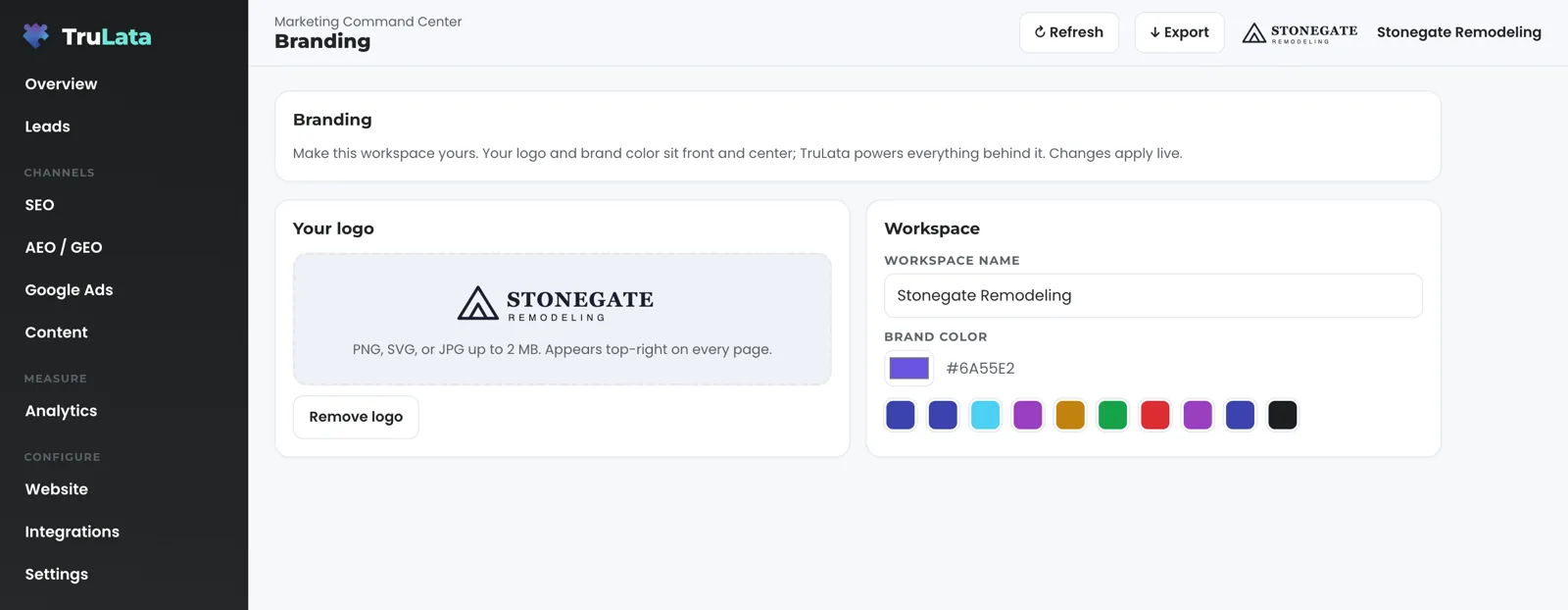
A new teammate sees your mark before they touch a setting.
Can I make the screen match my brand colours?
You can set one, and it stays in your browser. Pick a swatch or choose your own colour in the picker; the hex shows in capitals beside it and is kept in the browser you set it from, like the logo. The colour shows on your initials mark, and buttons, badges, pills and charts keep the product palette on every account.
The preview shows you the header treatment before you leave the view: your mark or your initials, the workspace name, a Powered by TruLata label, and a sample button, pill and progress bar in the product palette. Your colour appears on the initials mark in that preview when no logo is set, and the rest of the preview holds the product palette.
That is deliberate. TruLata is one product, and every account looks like the product. You are identified by your name and your logo, and the screen underneath stays the product. A number you read in the demo looks the same in your account. A screenshot a teammate sends you is readable at a glance. A person who holds a seat on two workspaces finds the same screen on both.
Reset to default is one button. It clears the logo and restores the name and colour from your workspace record, on the browser where you press it; the default logo set at setup returns on the next page load, and the screen confirms with Branding reset to default.
Stays the product
- Buttons, badges and pills
- Charts
- The palette, on every account
Yours
- Your logo, top right, 26 pixels tall
- Your workspace name beside it
- Your colour, on the initials mark
What does my whole team see, and what is just mine?
Everyone sees the default. Each person can adjust their own screen. Our team sets the default logo, workspace name and colour in your workspace configuration during setup, and every seat sees them on first open. A logo or name you change from the Branding view is kept in the browser you changed it from: it survives a reload there and shows nowhere else. That browser holds the image itself in its site storage, so clearing the browser's site data removes it and the default returns.
Take a Tuesday. Your office manager uploads a sharper logo from her laptop and sees it in the header at once; it is still there on Wednesday. Your estimator opens the workspace on his phone that afternoon and sees the default we set at setup, because her upload lives in the browser on her laptop. If the sharper logo is the one you want everyone to carry, email the file to [email protected], or send a request from any tab of the dashboard and we will ask for the file; either way it reaches our team under a ticket number. A person on our team sets it as the default in your workspace configuration and deploys it, and every seat sees it the next time the workspace opens.
Branding is read fresh on every page load, ahead of any data pull. The nightly snapshot at 12:01am Central and the live pull when a page opens refresh the numbers, not the header. The ads change watch at 7:05am ET reads your ad account, not your logo. Your logo is read from the workspace configuration, or from your browser, on each load, and it is in place before any pull finishes. The Refresh button starts a data pull that takes anywhere from 2 seconds to a little over 3 minutes and reloads the page; your header is the same before and after.
What you set here stays in your browser. The Branding view writes to the header of your workspace, and your website, your ad accounts, your CRM and your Business Profile change on their own paths, so a new logo here is for your team. The same rule holds across the account. What the screen can write is short: a question to the assistant where it is offered, a lead outcome on the lead record, a seat invited or removed from the Team view, the Google accounts you pick on Integrations, a website change request, and a content, keyword, category or targeting request. Requests go to the team as logged tickets, and the engine's writes to your ad accounts and your site go through each platform's API and land in its own change history.
Take a Tuesday
- Your office manager uploads a sharper logoIn the header at once, on her laptop
- Your estimator opens it on his phoneHe sees the default set at setup
- Her upload is still thereIt lives in her browser
- Email the file to supportOur team sets it as the default, under a ticket number
Why put my name on a marketing tool at all?
Because a screen with your name on it gets opened. TruLata is where your team reads leads, revenue, search and ads, and the header is the first thing they see. A vendor's logo there says a report arrived. Your logo there says this is where the business is run.
The split is simple. Your identity sits in the header; the product sits underneath it. The header is the same from Overview to Billing, on the Leads view and the Google Ads view alike, so the person who opens it recognises the screen, and the team that supports it sees the same layout on every account. Members and Admins see the same header; roles decide who can invite and remove a seat, not who sees your logo.
Setup is spent on access and data, not on designing a dashboard. Access comes first, and you grant it. Then comes the first pull, the baselines, your keyword set and the ads watch. After that come the content cadence, the ads reports, the email flows and your goals. Your logo goes in alongside that work.

Does this change my website, my ads or anything a customer sees?
Branding changes the header of your workspace. Your website's brand lives on your website. Social media management, posts created and published for your approval, is on Command, on its own path. Your Business Profile listing, your CRM and your email platform keep their own settings. Every Google connection stays the manager invitation you granted, revocable in your own console, and this view leaves every grant as you set it.
TruLata is your team's private site, at your own trulata.com address behind our sign-in gate, and our seat list decides who gets in, so a logo on it is for your team, not your market. Your customers' card data is never read, and your inbox and calendar sit outside this view.
To change your website, use the Website view. A request from there goes to the team and is logged, and a person makes the change on the site. The same applies to a content, keyword, category or targeting change: a logged request to the team, carried out by a person and tracked under a ticket number.
Each brand keeps its own path
- Your website
- Your ad creative
- Your Business Profile listing
- Content, keywords, targeting
- A person makes the change
- Tracked under a ticket number

Your logo there says this is where the business is run.
What should I check in the demo?
Open demo.trulata.com and go to Branding under Account. It opens with your name and email. Upload any PNG, SVG or JPG under 2 MB and watch the header change while you are still on the view. Type a new workspace name and watch it appear beside the mark as you type. Then try a file over 2 MB, or one that is not an image, and read the refusal.
Then look at what holds steady. Pick a colour and check the buttons, the badges and the charts: the palette stays put, and that is the product rule you are buying into. Reload the page and your upload is still there, because it lives in your browser. Open the same address in a second browser and you see the default, which is exactly what a teammate would see. Press Reset to default and the sample company's name comes back and the logo clears.
The demo runs the same engine code every client runs, so the Branding view you try is the one your team gets. Every number on the sample screens is illustrative; the header behaviour is not. Open Team next: seats used against seats on the plan tells you who holds a seat and will see the default header our team set, and Invite by email, with a role of Member or Admin, is how you add them.
Two things are by design. The palette is the product's on every account, and your logo reaches your website through the Website view, your ads through the Creative view, and your listing through a request to the team. Ask us about anything you are looking for, and we will show you where it is today or tell you plainly what is being built.
- Open Branding under Accountdemo.trulata.com opens with your name and email
- Upload any image under 2 MBWatch the header change while you are still on the view
- Type a new workspace nameIt appears beside the mark as you type
- Try a file over 2 MBRead the refusal
- Open a second browserYou see the default, which is what a teammate sees
What the branding view does.
| What | Where it comes from | How fresh |
|---|---|---|
| Logo and workspace name | Set in the view; PNG, SVG or JPG up to 2 MB | In the header at once, on that browser |
| Brand colour | A swatch or your own hex | Kept in your browser; the interface keeps the product palette |
| Scope | The header of your workspace | Website, ads, CRM and listing change on their own paths |
| Who can change it | Anyone with a seat, for their own browser | The default is set with you at setup |
Branding changes the header your team sees. Your website, your ads and your listing change on their own paths, each through a request or an approval you can read.
Questions, answered.
What file types can I upload?
PNG, SVG or JPG, up to 2 MB. A file that is not an image is refused with Please choose an image file, and one over 2 MB is refused with a note to pick a smaller file, and the header keeps the mark it had.
Who sees the logo?
Every seat sees the default logo our team set in your workspace at setup. A logo uploaded from the Branding view shows on the browser it was uploaded from; send us the file and a person on our team makes it the default for every seat.
Does the brand colour change my website?
The colour is kept in the browser you set it from and shown on the initials mark in the view's preview. Your website's brand lives on your website, and TruLata keeps the product palette on every account.
Can I go back to the default?
Yes. Reset to default is one button in the view. It clears the logo and restores the name and colour from your workspace record, on the browser where you press it; the default logo set at setup returns on the next page load, and the screen confirms with Branding reset to default.
Who can change branding?
Anyone with a seat, for their own browser. To change the default for every seat, email the file to [email protected], or send a request from any tab of the dashboard and we will ask for the file, and a person on our team sets it in your workspace.
Is this available on every plan?
Yes. The Branding view is part of TruLata, on all tiers, and every plan carries it.
See it running
before you decide.
The demo is the real product on a fictional company, with your name and email in front of it. Pricing is three published tiers.
Open the live demo See pricing
New here? See what TruLata is. Prefer to write? Send us the one thing you want to know.
Start here: AI marketing platform · AI marketing software · all-in-one marketing platform · marketing automation software · marketing software for small business.
- Refreshed when you open itLive data on page load, never a monthly PDF
- Counted from your own formsLeads recorded server-side, compared daily with Ads and GA4
- Seen in AI answersHow often ChatGPT, Gemini, Claude and Grok name you, measured
- Every send loggedProspect emails leave from a review-first queue, and every send is logged.